Many years ago, when I was trying to get my freelance writing business off the ground, I took a gig that required me to write two articles. No sweat, I thought. I was getting paid $100 for the first and $200 for the second, so I was nearly ecstatic.
Unfortunately, my editor wasn’t as happy as I was when she received my work. She wanted to know where the images that were supposed to accompany each piece were. She hadn’t specified that me creating images was a part of the deal because on her team, it was something everyone just knew to do. As a newbie, I didn’t realize it was part of the job. Thankfully, she let me off the hook for the images, but the situation changed my approach to content writing forever. From then on, I’ve checked to find out if images should accompany my work, and if they are I create them or find them on free websites like Pexels.
As I began to build my personal brand, the need to know how to create images increased exponentially, especially because I couldn’t afford to hire a graphic designer. I started out with no graphic design design skills. I taught myself how to create social media images by staying up late at night playing around with Adobe Photoshop Elements which, for me, was a challenging design tool to master. Then I discovered Canva, and all of my problems were solved. Thanks to its user-friendly design, I could create blog post, social media and other images like a pro, but it still took a lot of time. I had to look for images, do a Google search for interesting quotes, stats or other info, and then design the image in Canva. The process often took me several hours and still does to this day.
Now I’ve found a way to make creating images even easier using Meta AI. Meta AI is the artificial intelligence assistant designed by Meta, the parent company of Facebook. What’s great about it is that it answers questions like ChatGPT and can create images from a single prompt like Midjourney—all for free.
I love a good inspirational social media post, so I tried making one using Meta AI and loved the results especially because it shrunk my image creation time down to almost nothing.
Here’s how I made an inspirational quote post using Meta AI:
Step 1: Create a Background
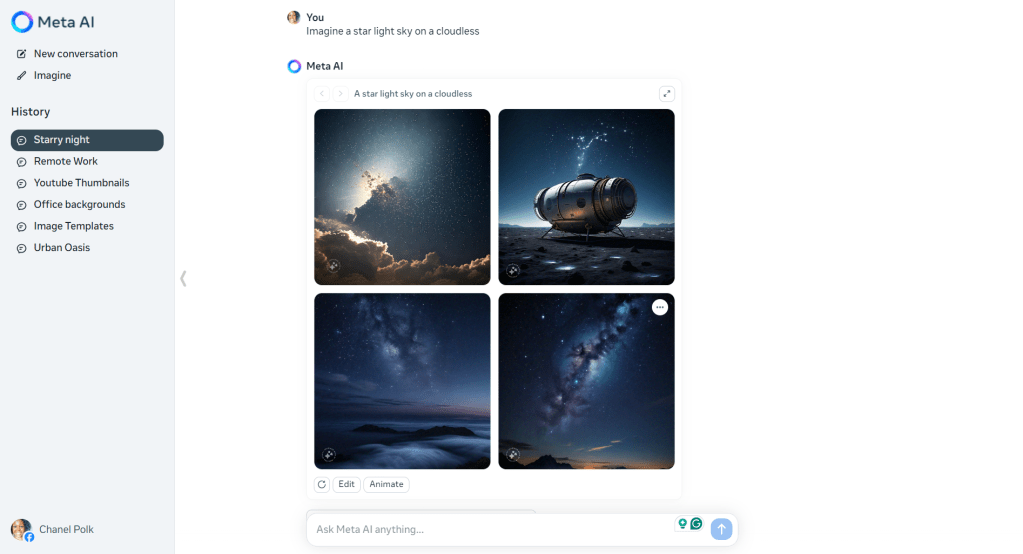
Image creation using AI hasn’t advanced to the point where you can ask it to generate an image with text from a single prompt, so you’ll need to work in steps. I chose to work on my image’s background first. To create an image, select “imagine” from the left sidebar and type a description of the background you’d like for your image. I asked for a star-filled night sky and the app generated four variations of my request. Meta AI won’t save the images it generates. You’ll need to download them.
Step 2: Ask Meta AI for an Inspirational Quote
Instead of doing a Google search and scouring the Internet for a good inspirational quote, I asked Meta AI to generate one. You can also ask it to generate 30 quotes, one for each day or the month, or different types of content to fit your content needs. The options are limitless.
Here’s the quote Meta AI gave me:
“The stars shine brightest in the darkest night, reminding us that even in our darkest moments, there is always hope and light to be found.”
It looks like it came with it on its own because, after a little research I haven’t been able to attribute it to anyone.
Step 3: Upload the Background Image to Canva & Add Text
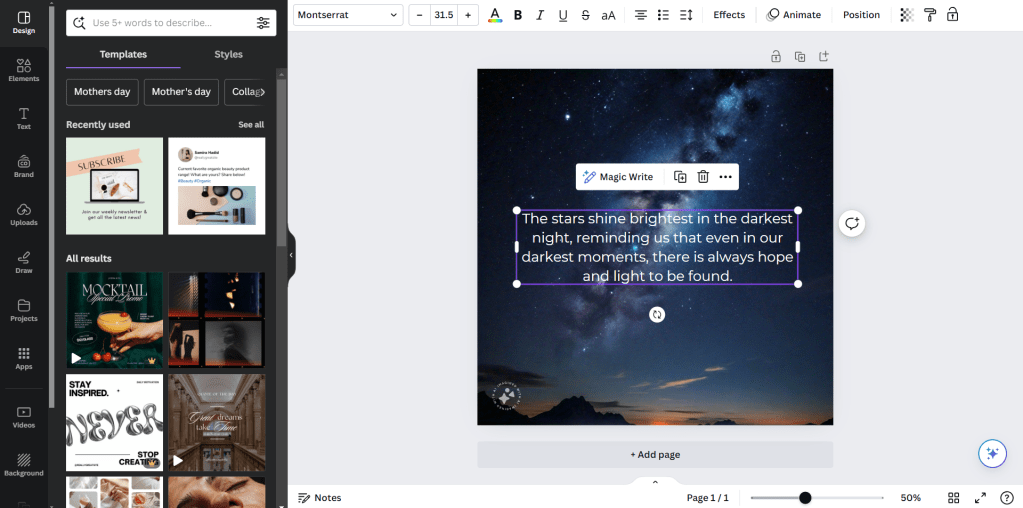
Open the design app Canva, select “Create a Design” from the top right-hand corner, and choose “Instagram Post (Square).” Then select “Uploads” from the left sidebar, choose “Upload Files,” and upload your background image. Next, select “Text” from the left sidebar to add a text box to your image and then paste in your Meta AI generated quote. When you’re done, tap or click the “Share” button in the top right corner and download your image.
Here’s what the final image looks like (Images generated by Meta AI have a watermark in the bottom left corner):
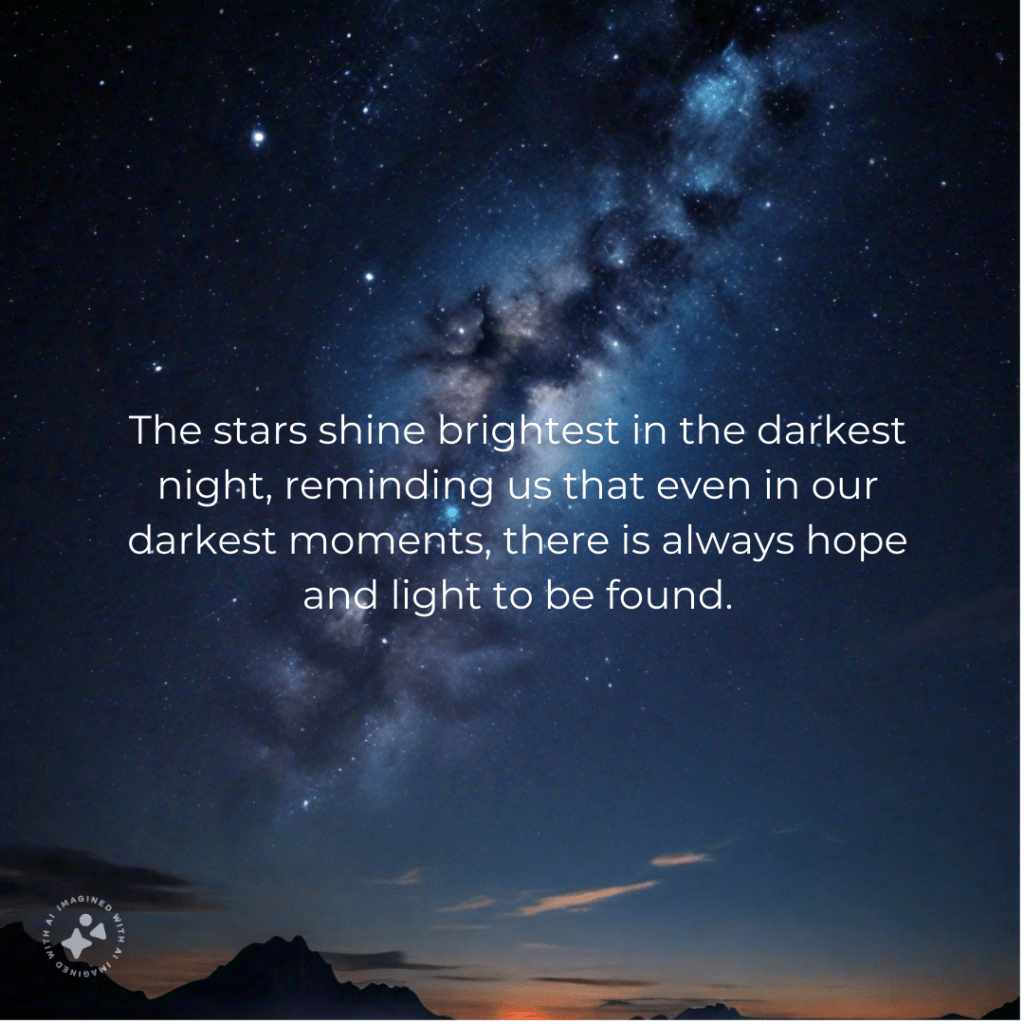
I love the finished product. Meta AI is a great alternative to ChatGPT and Midjourney because no subscription is required to access the image generation feature.
I’ll be using this process to create images with Meta AI. How about you? Will you be streamlining your image creation process with an AI tool or do you prefer to stick with your current system? Let me know in the comments.
Subscribe to my weekly newsletter to get blog posts, tips and more delivered straight to your inbox.
 Chanel Polk Writes
Leave a comment